
Palomar Amateur Radio Club STEM Experimentation Lab
📡 KiwiSDR Operating Instructions
The KiwiSDR Main Display
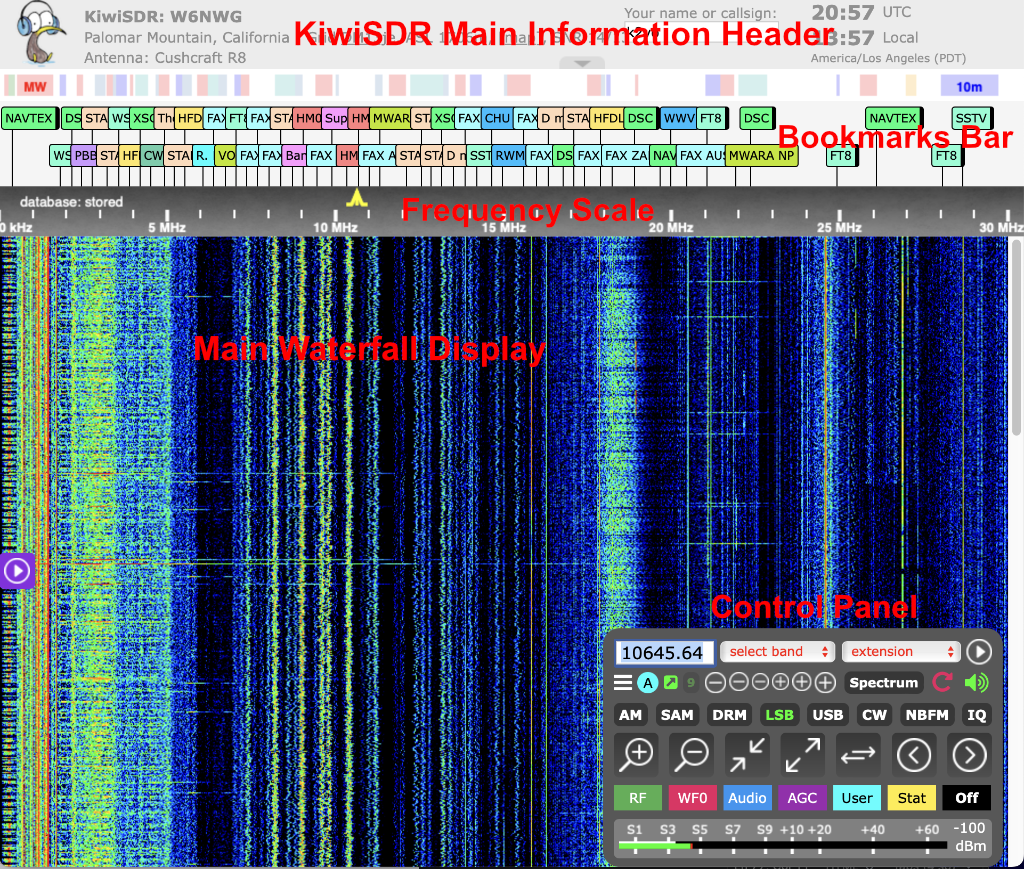
The KiwiSDR Waterfall Display
The waterfall shows signal activity over time. The yellow icon indicates your current center frequency. You can click anywhere on the waterfall to re-tune instantly.
The current frequency is indicated by a yellow icon on the Frequency Scale and is displayed numerically on the the top left of the Control Panel.
The main control sets are located on the Control Panel. There are buttons for zooming the waterfall in and out and for frequency tuning along with drop-down menus for band selection and audio and digital decoding modes.
Another nice feature of the Kiwi is that it will remember some of your selections for when you connect again:
- Name/Callsign field entry
- Frequency selected
- Mode button selection
- Waterfall zoom level
- 9/10 kHz LW/MM band step button setting
- Waterfall/Spectrum settings
- Audio settings
- AGC settings
- Noise blanker/noise filter settings
| Information and Control Panels | ||
|---|---|---|
| Information Header | Displays general information about the station | It includes the station name, location, the antenna in use and the current time. |
| DX Label Header | Displays a collection of DX Labels (like bookmarks) each containing a set of saved tuning parameters. When clicked the KiwiSDR tunes to the saved frequency and sets the receiver mode, passband and decoding parameters. If specified it will start an extension as well |
DX Labels provide a convenient way to remember and then quickly tune the KiwiSDR to favorite stations. |
| Frequency Scale | A frequency scale is provided for the waterfall display. The selected frequency is denoted with a yellow trapezoidal frequency icon: |
The frequency icon is centered on the currently selected frequency and its width indicates the bandwidth corresponding to the currently selected operating mode. ⓘ KiwiSDR Frequency Tuning |
| Control Panel | The Control Panel has most of the controls for operating the KiwiSDR including band selection, receiver operating modes and the waterfall display characteristics. | ⓘ KiwiSDR Control Panel |
Right-Click: The "Power User" Menu
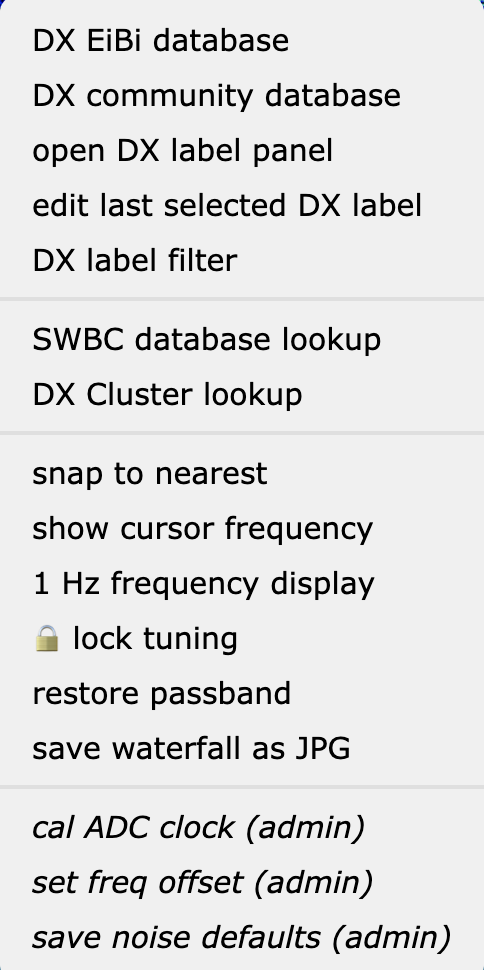
Right-clicking the waterfall opens a context menu. The options are grouped by function to help find what you need:
Database & Bookmarks
• DX EiBi / Community Databases
• DX label filter / Edit labels
• SWBC / Cluster lookups
Tuning & Display
• Snap to nearest / Lock tuning
• Restore passband
• Show/1Hz frequency display
System Tools
• Save waterfall as JPG
• Calibrate ADC (requires admin access)
• Set Freq offset (requires admin access)
• Save noise defaults (requires admin access)
References:
• KiwiSDR Project Home 🔗 KiwiSDR.com
Note: PARC does not sell or endorse any products mentioned in these pages.
Information is provided for education and instructional purposes only.